 JuaraKu
Step 3 of 7
43%
Make silly eyes
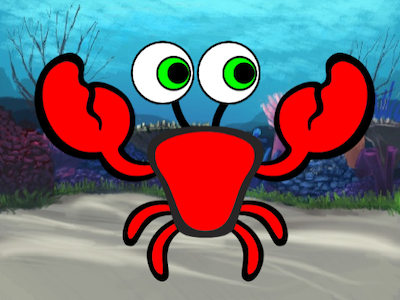 {:width="300px"}
Draw an eyeball
Use the Paint option to create a new sprite.
The Paint editor will open, which will allow you to create your Eyeball sprite's costume.
It is really important that:
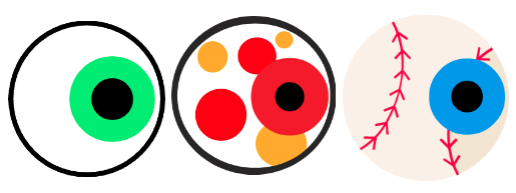
- The black pupil and coloured iris face to the right-hand side of the Eyeball costume
- The Eyeball costume is centred
Choose: Draw an eyeball or start from a round sprite.
Name your sprite Eyeball in the Sprite pane.
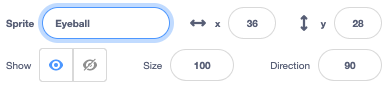
Drag the Eyeball sprite to position it on the Stage, and change its size to fit your character.
Now, make the eyeball look at the mouse-pointer so that the user can interact with your project.
User means the person using the project (not just making it), and user interaction is how the project reacts to the user doing things such as moving the mouse and clicking on the screen.
Code your eyeball
Add a script to set the rotation style to all around to make the eyeball point towards the mouse pointer forever.
Add another eyeball
To add another eye, right-click (or on a tablet, tap and hold) on the Eyeball sprite in the Sprite list and choose duplicate.

Test your silly eyes
Test: Click on the green flag and test your project. Do the silly eyes follow your mouse pointer as you move the mouse around?
Tip: You don't have to keep the mouse pointer on the Stage. The eyes will follow your mouse pointer as you carry on coding in Scratch.
Debug: You might find some bugs in your project that you need to fix. Here are some common bugs:
You might find a bug that is not listed here. Can you work out how to fix it?
We love hearing about your bugs and how you fixed them. Use the Send feedback button at the bottom of this page and tell us if you found a different bug in your project.