 JuaraKu
Step 2 of 8
25%
Choose your wand
Open the Broadcasting spells starter project. Scratch will open in another browser tab.
You should see a fairy in a woodland.
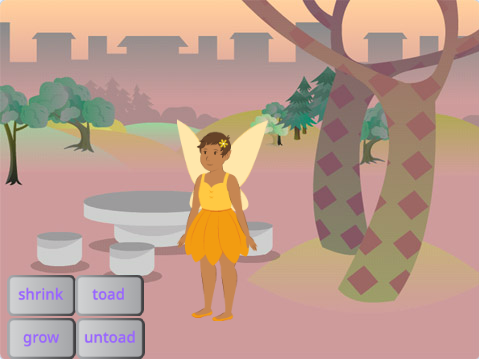
You need a wand to cast a spell.
Click Choose a Sprite and type wand into the search box:

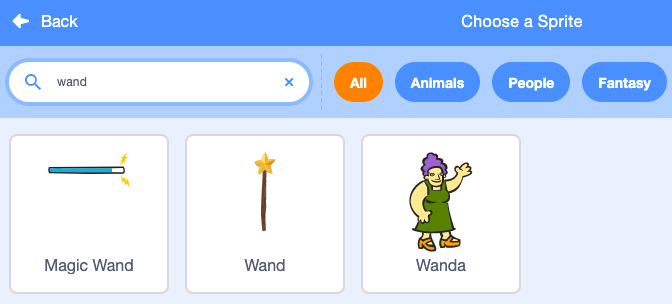
Choose: Add the wand you prefer to your project.
Add code to make the Wand sprite follow the mouse pointer and stay in front of the buttons:

when flag clicked
forever
go to (mouse-pointer v) //change from 'random position'
go to [front v] layer // in front of the buttons
end
Test: Click on the green flag to run your project. The wand will follow your mouse pointer.
Make the wand bigger and tilted, like you’re really using it.
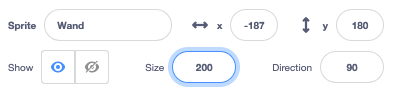
Go to the Sprite pane and change the Size property to 200 to make the wand bigger:
Click on the Costumes tab to open the Wand costume in the Paint editor.
Click on the Select (Arrow) tool and then draw a rectangle around the whole wand to select all of the parts of the costume.

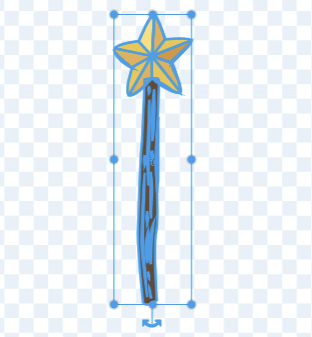
Click on the Group icon to combine the wand parts.

Use the Rotate tool on the wand to position the wand at an angle.
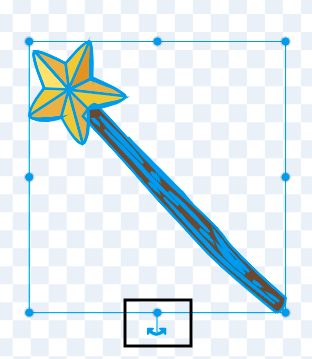
Tip: If you can't see the Rotate tool, click the Zoom out (-) tool at the bottom of the Paint editor to zoom out.
The Wand costume gets in the way of the mouse cursor when you try to click the buttons.
Move the wand so that its tip is just away from the crosshair in the centre.
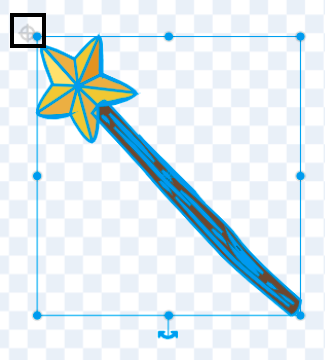
Test: Click the green flag and move the mouse around the Stage. The wand should follow.
If you are signed in to your Scratch account, click on the green Remix button. This will save a copy of the project to your Scratch account.

You can change the title of your project.

Tip: Give your projects helpful names so that you can easily find them when you have lots of projects.
If you do not have a Scratch account, you can click on File then Save to your computer to save a copy of the project.