 JuaraKu
Step 3 of 8
38%
The shrink spell
Click on the shrink sprite in the Sprite list below the Stage.

Add a when this sprite clicked block:
when this sprite clicked
The shrink sprite needs to broadcast a message so that the Fairy sprite knows that the shrink spell has been cast.
Add a broadcast block:
when this sprite clicked
+ broadcast (message1 v)
Click on message1 and choose 'New message'.
Name the new message shrink.
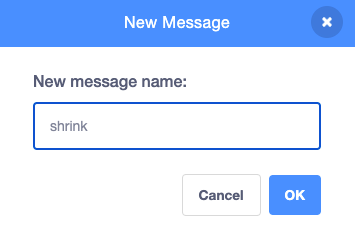
Your code should look like this:
when this sprite clicked
broadcast (shrink v)
Now when you click on the shrink button, Scratch will broadcast the shrink message, but nothing will happen yet.
Click on the Fairy sprite in the Sprite list below the Stage.

Add code to the Fairy sprite to shrink when it receives a shrink message:
when I receive [shrink v]
change size by [-10] // negative numbers decrease the size
Test: Click on the shrink button to shrink the Fairy sprite. Do this as many times as you like.
Debug: If your Fairy sprite grows instead of shrinks, add a minus - before the number 10 to make a negative number -10.
Add a script to set the Fairy sprite to normal size when the green flag is clicked:
when flag clicked
set size to [100] %
When messages are broadcast they can be received by all sprites. When the Wand receives the shrink message it should play a sound.
Click on the Wand sprite.

Click the Sounds tab.
Delete the Magic Spell sound.
Add the Slide Whistle sound and rename it to shrink.
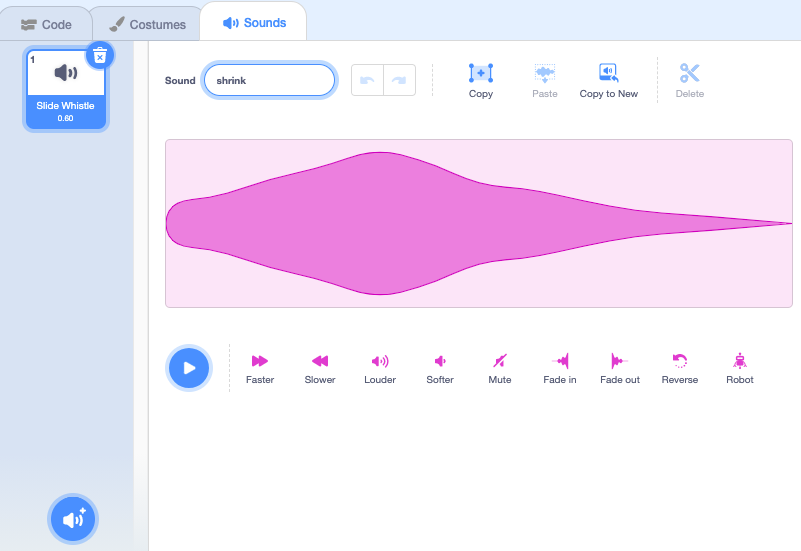
Add a script to play the sound:
when I receive [shrink v]
play sound [shrink v] until done
Test: Click on the green flag to run your project. Click on the shrink button to hear the sound and see the Fairy shrink.
The shrink button broadcasts a shrink message. Both the Fairy and the Wand sprite received the message and responded.