 JuaraKu
Step 2 of 8
25%
Set the scene
Open the Grow a dragonfly starter project. Scratch will open a blank project in a new browser tab.
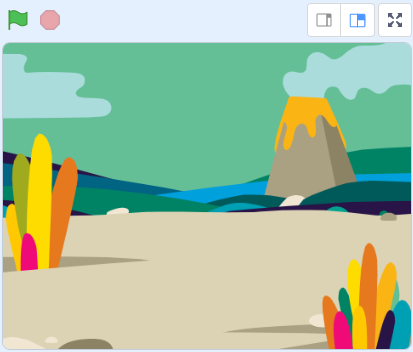
Click Choose a Backdrop and add a backdrop of your choice. We used the Jurassic backdrop.

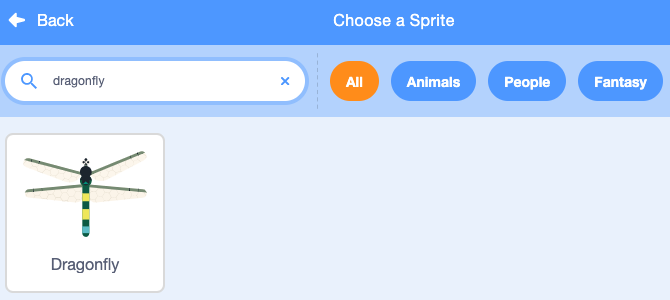
Click Choose a Sprite and search for dragonfly, then add the Dragonfly sprite.

Add a script to make the Dragonfly sprite follow the mouse-pointer (or your finger):

when flag clicked
set size to [25] % // to start small
forever
point towards (mouse-pointer v)
move [5] steps
end
Test: Click the green flag and make the Dragonfly sprite move around the Stage. Is the dragonfly moving as you would expect?
The Dragonfly costume is not facing to the right, so the head of the Dragonfly sprite is not pointing towards the mouse-pointer.
Click on the Costumes tab and use the Select (arrow) tool to select the costume.
Use the Rotate tool at bottom of the selected costume to turn the Dragonfly costume to face the right.
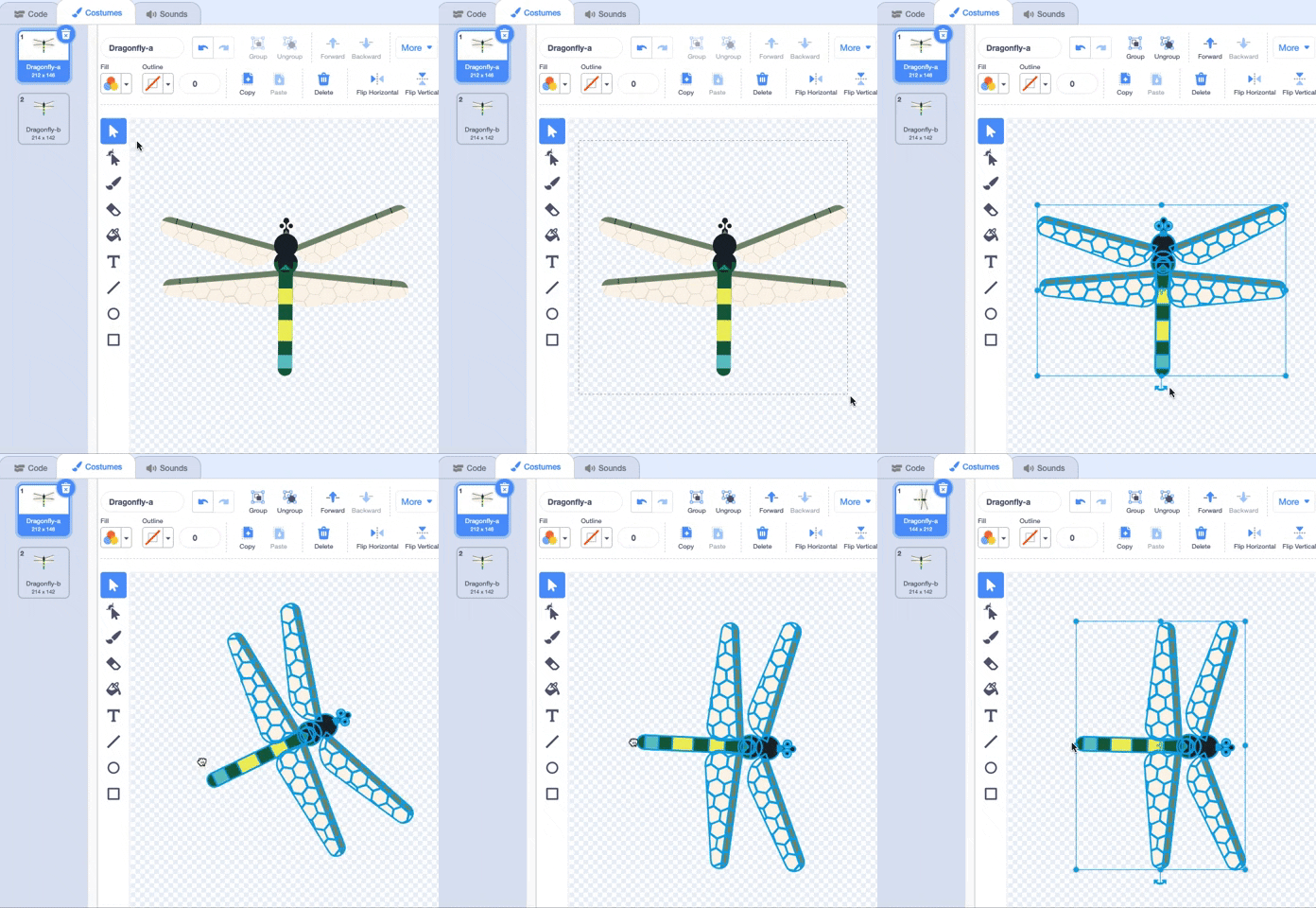
Test: Click the green flag and look at how the dragonfly moves now.
Dragonfly wings make a fluttering sound as they vibrate. You can edit a sound in Scratch to create your own sound.
Add the Crank sound to the Dragonfly sprite.

Test: Click the Play button so you can hear the sound.
The Crank sound is too long and too slow for dragonfly wings.
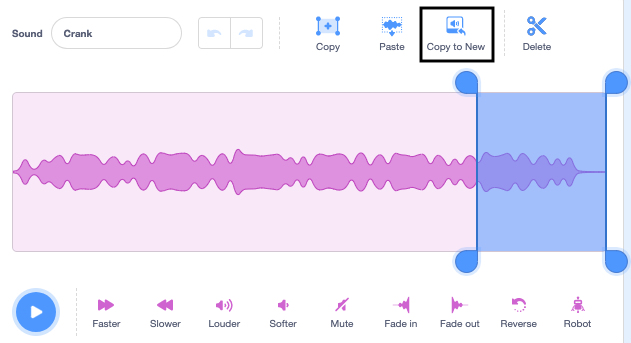
Select the end of the sound using your cursor or finger.
Click Copy to New to make a new sound with just the selected part:
Rename your new sound from Crank2 to Wings.
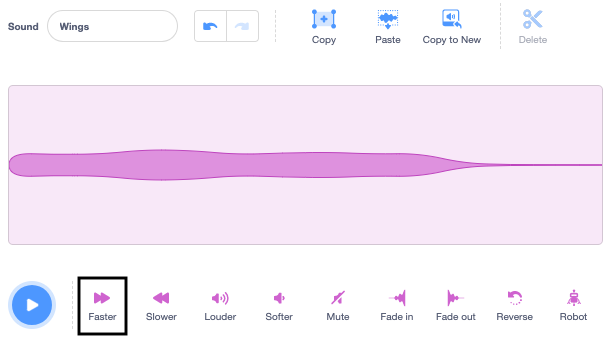
Test: Play the new sound. Click the Faster button a few times until you like the result:
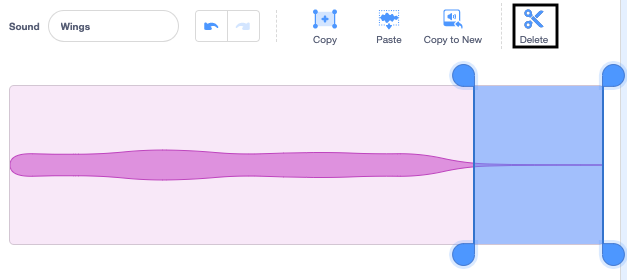
If you like, you can select the very end of the Wings sound, and then click Delete to remove it:
Now add a block to play the Wings sound when the dragonfly moves:
when flag clicked
set size to [25] %
forever
+start sound [Wings v]
point towards (mouse-pointer v)
move [5] steps
end
Test: Try out your dragonfly movement and sound effect.