 JuaraKu
Step 7 of 8
88%
Challenge
Change the speed of the dragonfly.
Change the size that the dragonfly needs to grow to reach full size.
Change the first Insect so that it can only be eaten with the dragonfly's mouth.
Add more insects
You can paint your own insects or trying adding an emoji mosquito!
Use the emoji keyboard to add a Mosquito emoji sprite.
Duplicate an existing insect sprite then click on the Costumes tab. Paint a new costume and select the Text tool. Instead of typing text, use the emoji keyboard shortcut for your Operating System:
- Windows - ⊞ Win + .
- MacOS - control + command + space
- Linux - ctrl + .
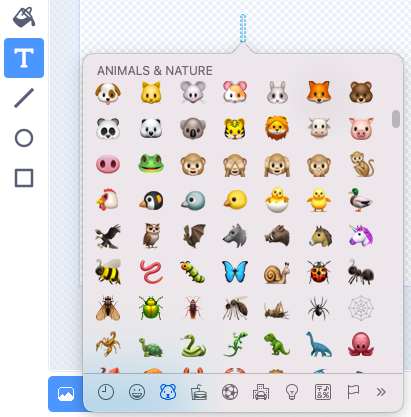
Select the Mosquito emoji to insert it into the Paint editor. Use the Select (arrow) tool to centre, resize, and rotate your mosquito until you are happy with it.
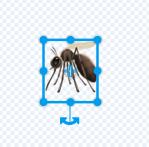
Tip: Emojis can look different on different computers, so they might not look the same on a tablet and a desktop computer. Some emojis aren't available on some computers, but most modern computers will support them.
Create random movement
Use the pick random block to make the insect move in a more natural way.

Add a script to Insect 2 to make it point in a random direction every 1–3 seconds.

when flag clicked
forever // Keep changing direction
point in direction (pick random [0] to [259])
wait (pick random [1] to [3]) seconds
end
Test: Run your project and watch how the sprite moves.
Drag this script to the other Insect sprite to make it move randomly.
Share you insects
Use your Backpack to trade insects with your friends from their 'Grow a Dragonfly' projects.
Send the link of your project to your friend who can go inside the project, click on Backpack (the one under the code space) and drag and drop the sprite.
Check each sprite and costume has a name that describes the image. This makes your project easier to understand if you come back to it later.
Right-click on the Code area and choose Clean up Blocks to get Scratch to tidy your code.