 JuaraKu
Step 6 of 8
75%
More food
Right-click on the Insect sprite in the Sprite list under the Stage and duplicate it.
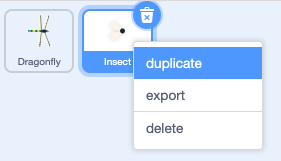
Make this insect look different to the fly.
Click on the Costumes tab and create a different flying insect.
- Use the Fill tool to change the colour of this insect.
- Paint your own insect costume.
- Add another bug costume from Scratch.
The insect gets eaten even if it touches the dragonfly's wing or tail.
To make your app more realistic, fix this so that the insect gets eaten by the dragonfly's mouth. You can use the touching color block so the insect only gets eaten if it is touches a particular colour on the Dragonfly.
Select the Dragonfly sprite and click on the Costumes tab.
Use the fill tool to fill in the Dragonfly's mouth. We used purple:
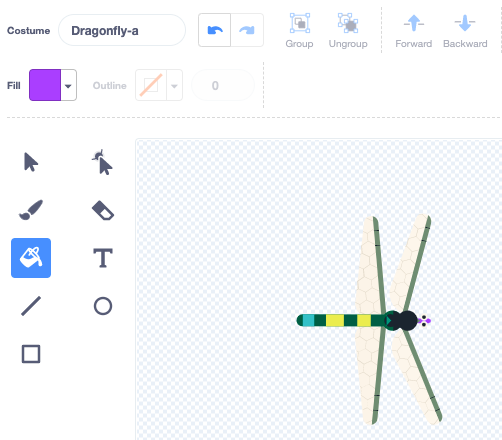
You need to check that the new sprite is touching the Dragonfly sprite and touching the colour of the dragonfly's mouth.
Select your new sprite and click on the Code tab.
Drag an and block into the if block.
The <touching [Dragonfly v] ?> block will pop out, drag it into a space in the and block:

when flag clicked
show
forever
move [3] steps
if on edge, bounce
+if <<touching [Dragonfly v] ?> and <>> then
broadcast [food v]
hide
go to (random position v)
show
end
end
Drag a touching color block into the other space of the and block:
when flag clicked
show
forever
move [3] steps
if on edge, bounce
+if <<touching [Dragonfly v] ?> and <touching color (#9966ff) ?>> then
broadcast [food v]
hide
go to (random position v)
show
end
end
If it doesn't have the colour of the dragonfly's mouth selected, click on the colour circle and then click on the Eyedropper tool at the bottom to select a colour.
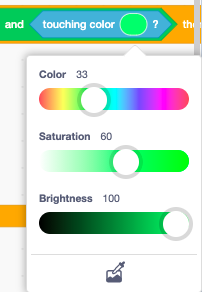
Click on the dragonfly's mouth on the Stage to set the colour:
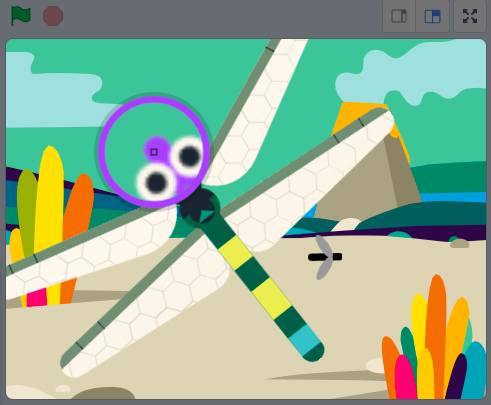
Tip: If the small mouth is hard to select, make the Dragonfly sprite bigger.
Test: Check the dragonfly can only eat the second insect with its mouth.