 JuaraKu
Step 3 of 9
33%
First level
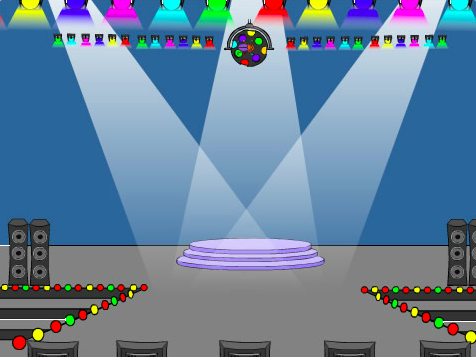
Add another Backdrop
Add the Spotlight backdrop from the Music category.

Resize the bug
Click on the bug sprite in the Sprite list. Add a script to change the size of your bug when the backdrop switches to Spotlight:

when backdrop switches to [Spotlight v]
set size to [20] % // tiny
Click on the code to change the size, then drag your tiny bug to a hiding place.
Add code to position your bug:
when backdrop switches to [Spotlight v]
set size to [20] % // tiny
+ go to x: [13] y: [132] // on the disco ball
Choose: You can choose a different size and location, if you prefer.
Move to the next Backdrop
When you play the game and you successfully find the bug, the game will switch to the next backdrop. Also, to start the game, you will click on the bug on the 'start' screen.
The next backdrop block switches to the next backdrop in the order in which the backdrops are listed when you click on the Backdrops tab for the Stage.
Add a script to your bug sprite to play a Pop sound and switch to the next backdrop when this sprite is clicked:
when this sprite clicked
play sound [Pop v] until done
next backdrop
Make the game start with the Start Screen
Click on the Stage pane and add this code to the Stage:

when flag clicked
switch backdrop to [start v] // 'start' screen
Test: Click on the green flag to test your project.
You will notice that on the 'start' screen, the bug will still have the settings to hide in its hiding place from the first level (in this example, on the disco ball).
Tip: After the last backdrop in the list, next backdrop will switch back to the first backdrop.
Click on the bug sprite in the Sprite list. Add a script to set the size of the bug when your backdrop switches to the start screen:
when backdrop switches to [start v]
set size to [100] % // full-sized
Change the position of the bug
Try to position the bug on the 'start' screen.
Your code will make the backdrop switch when you click on the bug! That is not helpful when you are trying to position the bug.
To fix the problem, you need to stop the code from running when you click on the bug.
Click on the green flag to return to the 'start' screen.
Click on the bug sprite in the Sprite list and drag the blocks away from the when this sprite clicked block:
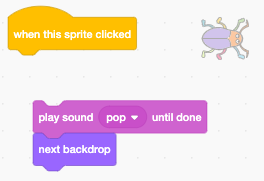
Try to position the bug again. Drag the bug onto the chalkboard, below the text:
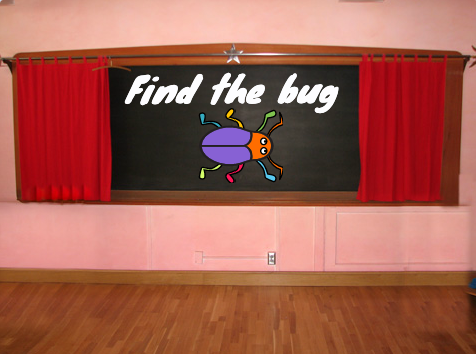
Add code to make sure that the bug is positioned on the chalkboard every time your backdrop switches to the start screen:
when backdrop switches to [start v]
set size to [100] % // full-sized
+ go to x: [0] y: [30] // on the board
Join the blocks back together so that the code blocks are under the when this sprite clicked block again:
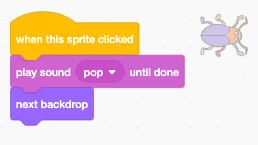
Test: Click on the green flag to test your project. Click on the bug to move to the next backdrop. The bug should be big on the 'start' screen and small on the 'Spotlight' level.