 JuaraKu
Step 3 of 9
33%
Pico says hello
Add code blocks to make Pico emote with words and sound when the sprite is clicked.
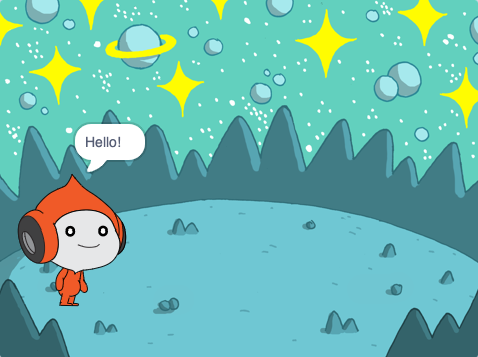
Emotes are a way of showing the personality of a character in a game. They can use speech, sounds, movement, and graphic effects, just like in Scratch. Do you play any games that use emotes?
Use the say block
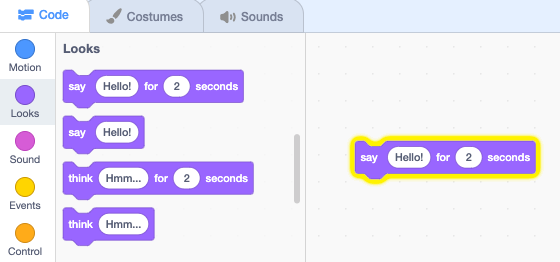
Open the Looks blocks menu.
Click on a say Hello! for 2 seconds block.
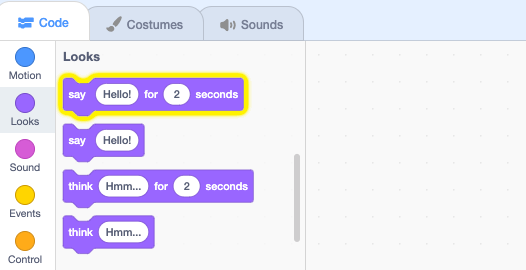
The Pico sprite will show a speech bubble for two seconds.
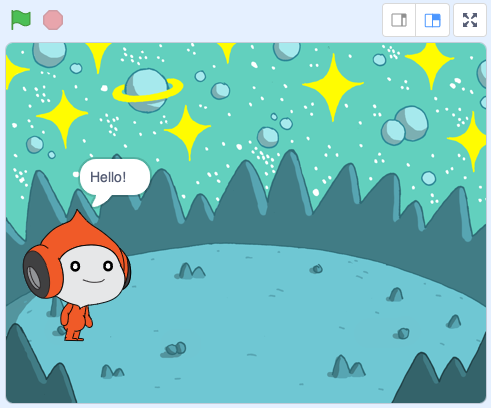
Tip: Code blocks in Scratch glow with a yellow outline when they are running.
Drag the say Hello! for 2 seconds block to the Code area. Click on it again.
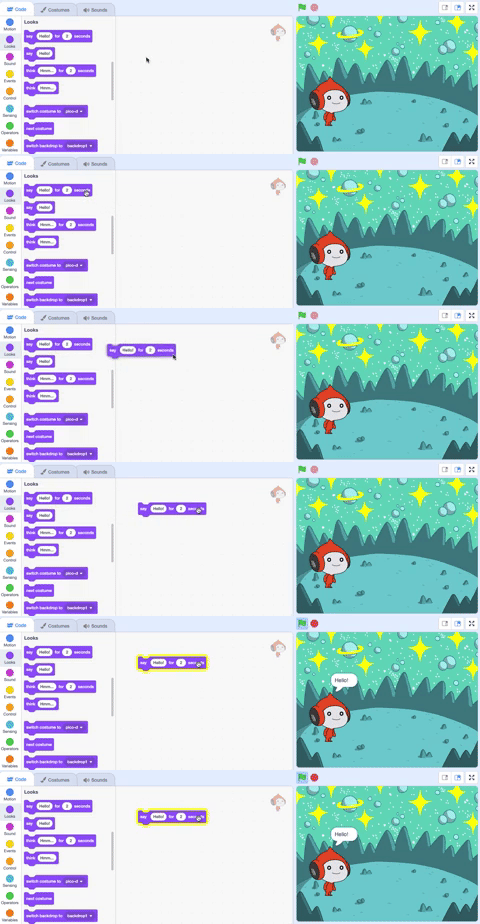
Make Pico talk when clicked (or tapped)
Drag a when this sprite clicked block from the Events blocks menu and connect it to the top of your say block in the Code area. The blocks will snap together.
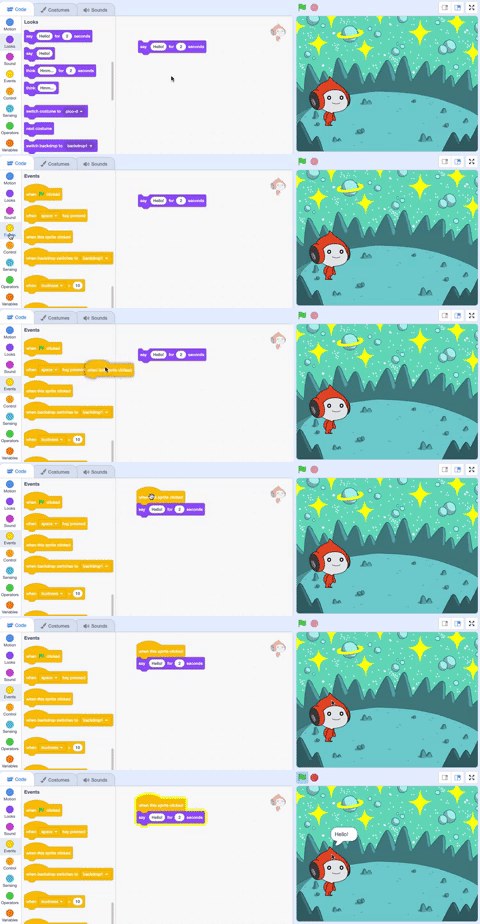

+when this sprite clicked
say [Hello!] for [2] seconds // hide speech after 2 seconds
Code comments
say [Hello!] for [2] seconds // hide speech after 2 seconds
You will see comments in code examples. You don't need to add the comments when you add code to your project.
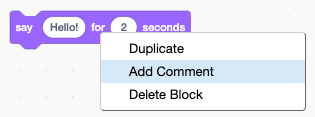
If you have time when you have finished your project, it is a good idea to add comments to your code so that it is easier to understand later. Try adding a comment now. Right-click (or on a tablet, tap and hold) on a block in the Code area and choose Add Comment.
Test
Test: Click on the Pico sprite on the Stage and check that the speech bubble appears for two seconds. It is important to test your code to make sure that it does what you expect.
You have already saved your project and given it a name. Scratch will now automatically save for you.
You can still click save if you like, just to make sure.