 JuaraKu
Step 5 of 9
56%
Nano switches costume
Get Nano to emote by switching costumes.
Sprites have costumes to change the way that they look. They are usually slightly different images of the same sprite. To animate a sprite, you can change its costume.

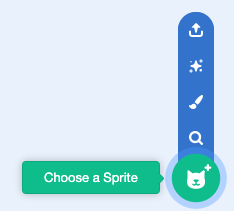
Add the Nano sprite to your project from the Fantasy category.
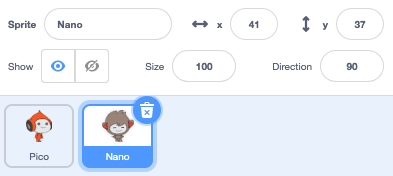
Make sure that the Nano sprite is selected in the Sprite list below the Stage.
Click on the Code tab and add a script to get the Nano sprite to change costume using switch costume to and wait. Use the drop down menu to switch between nano-b and nano-a:

when this sprite clicked // when Nano is clicked
switch costume to (nano-b v) // Nano talking
wait (0.5) seconds // try 0.25 instead of 0.5
switch costume to (nano-a v) // Nano smiling
Tip: All the blocks are colour-coded, so you will find the switch costume to block in the Looks blocks menu and the wait block in the Control blocks menu.
Test: Click on the Nano sprite on the Stage and check that Nano's costume changes.