 JuaraKu
Step 7 of 9
78%
Giga changes colour
Sprites can also use thought bubbles and change colours to show their personality. You will get Giga to do this.
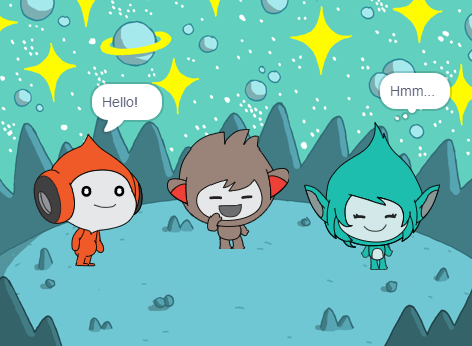
Make Giga change colour
Add the Giga sprite.
Drag the Giga sprite to the right-hand side of the Stage.
Make sure that you have the Giga sprite selected in the Sprite list below the Stage. Add this code to make the Giga sprite communicate by changing colour:

when this sprite clicked
set [color v] effect to [0] // 0 is the starting colour
think [Hmm...] for [2] seconds
clear graphic effects // back to the starting colour
Tip: Click on the sprite in the Sprite list below the Stage before you add or change code, costumes, or sound. Make sure that you have clicked on the correct sprite.
Try different numbers from 1 to 200 in the set color effect to block until you find a colour that you like.
Change the words and number of seconds in the think block.
Test: Click on the Giga sprite on the Stage and check that the sprite changes colour and shows a thought bubble.