 JuaraKu
Step 4 of 9
44%
Pico plays a sound
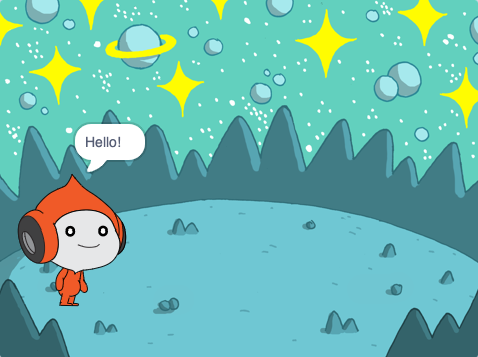
Add a sound to the Pico Sprite
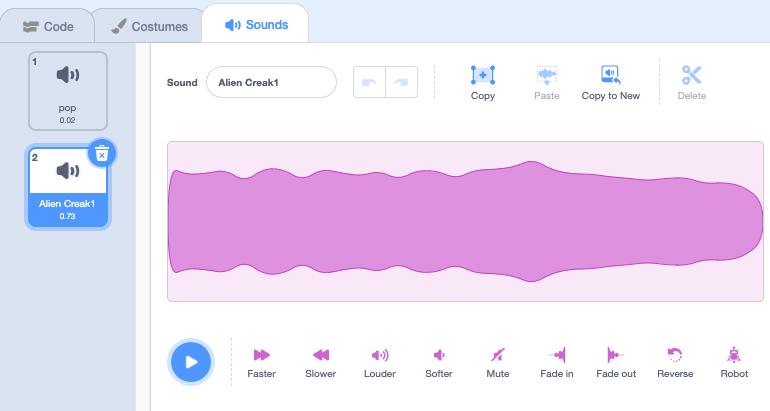
Click on the Sounds tab for the Pico sprite and you will find a pop sound. Click on the Play icon to hear the pop sound.
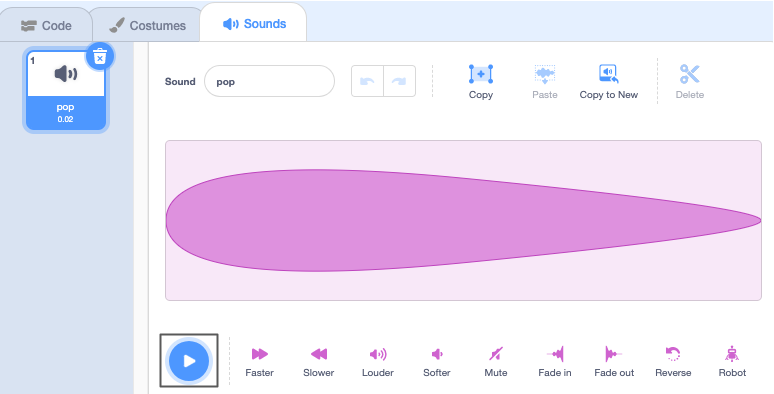
Debug: If you cannot hear a sound then check that sound is working on your computer or tablet.
To choose a new sound, click on the Choose a Sound icon and select the Space category or type space in the search box.

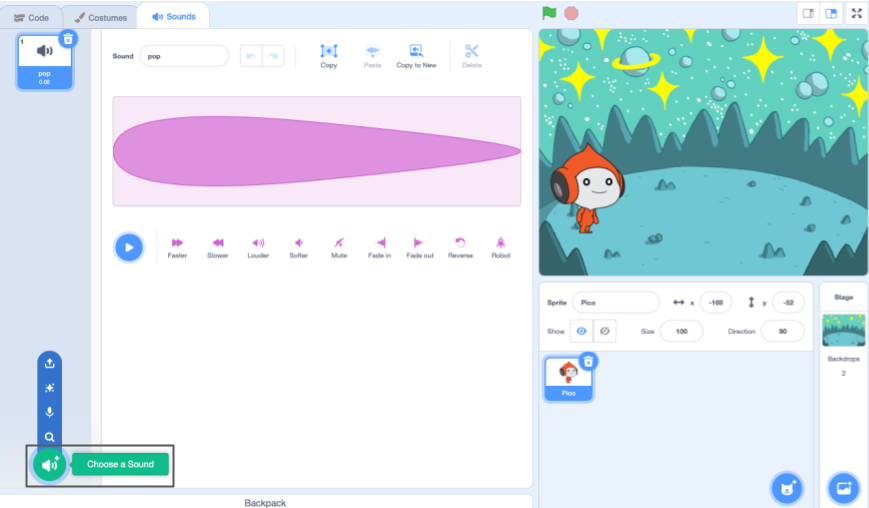
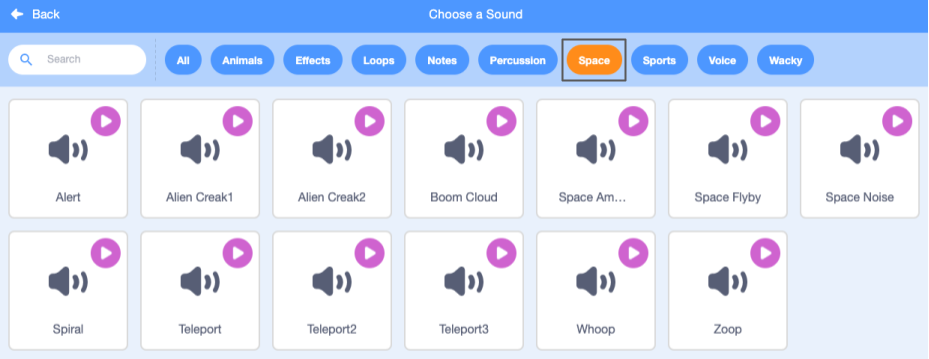
Play a few different sounds using the Play icons. Once you have found the sound that you want to use, click on it to add it to your project.
Make the sound play when clicked (or tapped)
Click on the Code tab. In the Sound blocks menu, find the start sound block.
Drag the block into the Code area, between the when this sprite clicked block and the say block. A gap will open up and the block will snap into place.
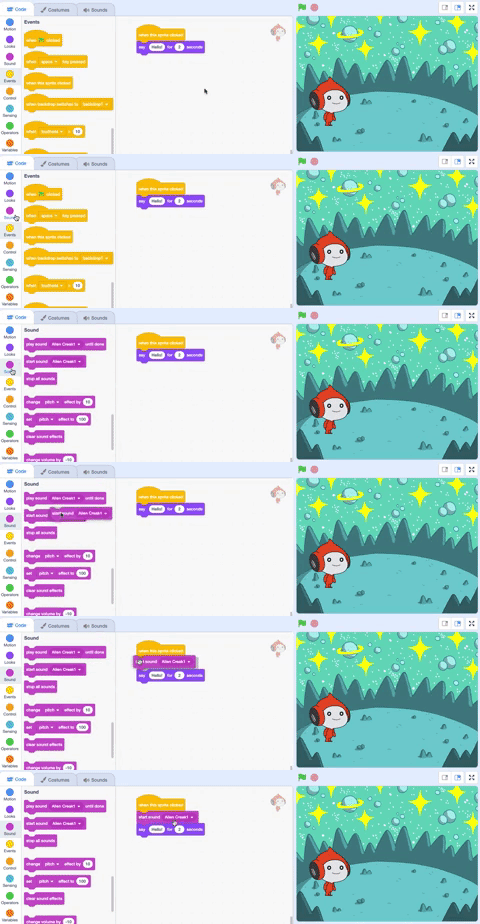
Your code should look like this:

when this sprite clicked
+start sound [Alien Creak1 v]
say [Hello!] for [2] seconds // hide speech after 2 seconds
Test your code
Check that your start sound block has your chosen sound in it. If it does not, you need to click on the sound in the start sound block, then select your chosen sound in the drop-down menu.
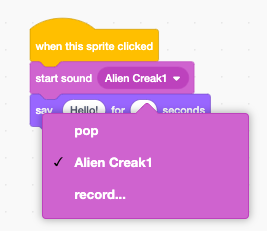
Test: Click on the Pico sprite and check that the speech bubble appears and you can hear the sound. If you do not hear the sound, make sure that you have added the start sound block under the when this sprite clicked block.